Interview Questions

Thursday, August 26, 2021

System does not support setup 'continuous' of number sequence ####.

 Hi Friend,

Sometime we got the requirement that through code we need to create next number sequence value. But when we will write the code then during execution we got error message as = "System does not support setup 'continuous' of number sequence ####."


For solving this issue please add number sequence line between "TTS Begin" and "TTS Commit".

You need to put a ttsbegin/ttscommit statement around your number sequence generation code if you want to use a continuous number sequence. Continuous number sequences allow you to release unused numbers back to the pool of number sequences to use. Decide first if you want/need a continuous number sequence and then make it work. Unchecking the 'continuous' number sequence checkbox will work, but it may not be the final solution that you need.


Tuesday, August 24, 2021

How to make any button as by default selected on dialog created by X++

Hi Friends,

Sometime we got the requirement the we need to make "Cancel" button as by default selected on dialog created through X++;

So below function will help you to make "Cancel" button as default button on dialog.


Code: "dialog.defaultButton(DialogDefaultButton::Cancel);"


Tuesday, July 14, 2020

How to compile ax application objects through command prompt

Hi Guys,

If we need to save our time from compilation, we can follow below steps:

1- Open command prompt as administrator
2- Type below command
Command : axbuild.exe xppcompileall /s=01(instancenumber)

instance number = AOS number

normally, this type of compilation will complete in 20-30 mins. Depends on the cors used in process.

Monday, July 13, 2020

Cannot start AOS / Error: Cannot create another system semaphore.

Hi Friends,

Some time we found that after restoration of DB, one error popup during AOS start:
"Cannot create another system semaphore".

For this issue please find below solutions:
1- Open "SQL server management studio" as admin then select your master db and create below query-
update SQLSystemVariables
set value = '4'
where parm = 'SYSTIMEZONESVERSION'

After creation execute the query.
It worked for me.

2- check the user permission through which you are trying to start the AOS.

Thursday, March 22, 2018

How to use ternary operator in ax 2012

Hi All,

As we all know that we in some scenarios we need to use Ternary operator for reducing code lines. In a single line we can execute multiple cases.
For achieving this, please go through with below code.

Sample Job for ternary operator:

static void GOD_TernaryOperatorEx(Args _args)
{
    int a, b, c;
    ;

    a = 9;
    c = 8; 
         
    b = (a < 10 ) ? info ("Yes") : info ("No");
   In above line of code we are executing single condition or in other word we can say "If" Condition.
   In this condition we are just testing that "A is greater than 10 or not. If it is, then it will generate       info with "Yes"".

    Or

    b = (a < 10 ) ? ((a < c) ? info ("Yes") : info ("Nope")) : info ("No");
   In above line of code we are executing multiple conditions or in other word we can say "If and else if" Condition.
   In this condition we are testing that "A is greater than 10 or not. If it is not then it will print No, else it will again check that A is greater than "C" or not. If yes then it will print Yes else it will show Nope.
}

Tuesday, March 20, 2018

Use Temporary Table as form datasource in ax 2012

Hi All,

In many scenarios we need to use temporary table as form data source. So below steps are used to achieve this target.

Step 1 - Create a temporary table and make "Table Type" property as "TempDB"
Step 2 - Create a class to fetch or generate the data and insert into temporary table.
Step 3 - Create a method in class for executing your code.

For ex- 
public TempTableTmp  GenerateTempTable()
{
    TempTableTmp       tempTable;
    ;

    Write your logic and insert into temporary table then write below line:
    return tempTable;
}

Step 4 - Create a form and used temporary table created in step 1 as data source.

Step 5 - Override init method at form data source level.

Step 6 - In this method we need to instatiate the class which we have developed at step 2

For Ex - 
public void init()
{
TempTableClass temptableclass = new TempTableClass();

super();

tempTable = temptableclass.GenerateTempTable();

TempTableTmp.linkPhysicalTableInstance(tempTable);
//In above line if you will not use "LinkPhysicalTableInstance" method then you will not get the data on form.

} 

Step 7 - Create a display type menu-item and place at your desired place.

It will solve your issue.

Thursday, December 21, 2017

How to create lookup method in ax 2012....

Hi Guys,

Scenario:
1- If you want to show any lookup on form's field
2- If master table field lookup you want to show in parent table 2 fields.
For ex-
You have Parent table "DiscountMaster" and field "MasterID"
and Child table "Discount Details" and fields "Discount Master ID", "Discount Code"

Now, if you want to show the lookup in fields "Discount Master ID", "Discount Code"
then normal solution is "you need to create relation with parent table" but whenever you will go to create normal relation between 2 fields of child table with 1 field of parent table then in the second record of relation will not show the complete lookup value. It will show only first field selected value in lookup. Then in this case you need to override lookup method:

For that please use below code;

public void lookup()
{
    Query query = new Query();
    QueryBuildDataSource queryBuildDataSource;
    QueryBuildRange queryBuildRange;

    SysTableLookup sysTableLookup = SysTableLookup::newParameters(tableNum(DiscountMaster), this);

    sysTableLookup.addLookupField(fieldNum(DiscountMaster, MasterID));

    queryBuildDataSource = query.addDataSource(tableNum(DiscountMaster));
 

    sysTableLookup.parmQuery(query);

    sysTableLookup.performFormLookup();

    //super();
}

it will solve your issue.

Note: Don't forget to remove relation with second field.

Tuesday, October 24, 2017

How to find SQL server version through AX 2012

Hi All,

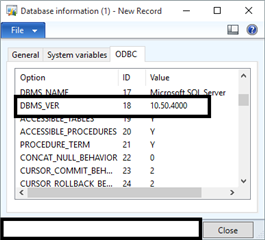
If any person wants to check SQL server version through AX then please follow below path:

Go to: System Administration > Inquiries > Database > Database information.
Open that form and go to ODBC tab and find DBMS _VER.

Monday, October 23, 2017

"Argument to method getfieldValue out of range" error in DMF in AX 2012

Hi All,

If any person will find error "Argument to method getfieldValue out of range" then we need to fill "Title Field 1 and Title Field 2" table properties of staging table created in private project:


It will solve your error.

Sunday, October 22, 2017

"SQL error description: [Microsoft][SQL Server Native Client 10.0][SQL Server]Invalid object name 'AX2012R2CU6_model.dbo.SYSMODELELEMENT" error while selecting table in lookup in ax 2012

Hi Guys,

If any person is getting error related with SQL:
"SQL error description: [Microsoft][SQL Server Native Client 10.0][SQL Server]Invalid object name 'AX2012R2CU6_model.dbo.SYSMODELELEMENT"

Then for this error we need to compile a "View" from AOT named "DMFModelElement".
It will solve your issue.

Other alternates is "Reinstall the DMF tool". (But in many cases this solution didn't worked)

Thursday, September 7, 2017

The formatter threw an exception while trying to deserialize the message Dynamics Ax 2012 R3 SSRS

The formatter threw an exception while trying to deserialize the message: There was an error while trying to deserialize parameter http://tempuri.org/:queryBuilderArgs. The InnerException message was ‘Element ‘http://tempuri.org/:queryBuilderArgs’ contains data from a type that maps to the name ‘http://schemas.datacontract.org/2004/07/XppClasses:SrsReportProviderQueryBuilderArgs’. The deserializer has no knowledge of any type that maps to this name. Consider using a DataContractResolver if you are using DataContractSerializer or add the type corresponding to ‘SrsReportProviderQueryBuilderArgs’ to the list of known types – for example, by using the KnownTypeAttribute attribute or by adding it to the list of known types passed to the serializer.’. Please see InnerException for more details.


Solution:
  • Stop AOS service.
  • Stop Sql Server Service.
  • Start SQL server Service.
  • Restart SQL Server reporting services.

Monday, August 21, 2017

How to released items from excel through X++

//Excel Format:
//Item Number                Item Name                Search Name

static void ReleasedProductsCompanyWise_JOB(Args _args)
{
    SysExcelApplication application;
    SysExcelWorkbooks workbooks;
    SysExcelWorkbook workbook;
    SysExcelWorksheets worksheets;
    SysExcelWorksheet worksheet;
    SysExcelCells cells;
    COMVariantType type;
    FilenameOpen                    filename;
    str             itemnumber;
    int row = 1; // if the excel has the header
 
    EcoResProduct ecoResProduct;
    InventTable inventTable;
    InventTableModule inventTableModule;
    NumberSequenceTable numberSequenceTable;
    ItemId itemId;
    InventItemSetupSupplyType inventItemSetupSupplyType;

    EcoResStorageDimensionGroupProduct ecoResStorageDimensionGroupProduct;
    EcoResTrackingDimensionGroupProduct ecoResTrackingDimensionGroupProduct;
    EcoResStorageDimensionGroupItem ecoResStorageDimensionGroupItem;
    EcoResTrackingDimensionGroupItem ecoResTrackingDimensionGroupItem;
    ;
    application = SysExcelApplication::construct();
    workbooks = application.workbooks();
    filename  = "****.xlsx; // complete file path (You will find it in property window of excel)
 
    try
    {
        workbooks.open(filename);
    }
    catch (Exception::Error)
    {
        throw error("File not found");
    }
    workbook = workbooks.item(1);
    worksheets = workbook.worksheets();
    worksheet = worksheets.itemFromNum(1);
    cells = worksheet.cells();

    //Iterate through cells and get the values
    do
    {
        //Incrementing the row line to next Row
        row++;
 
        itemnumber = cells.item(row,1).value().bStr();  
 
     
        select firstOnly ecoResProduct where EcoResProduct.DisplayProductNumber ==  cells.item(row,1).value().bStr();  //itemnumber //Audio system
        if(!inventTable::exist(itemnumber))
        {    
             
        //while select * from ecoResProduct
        changecompany ('DAT')
        {
        ttsBegin;
        inventTable = null;
        inventTableModule = null;
        inventItemSetupSupplyType = null;
        ecoResStorageDimensionGroupProduct = null;
        ecoResTrackingDimensionGroupProduct = null;
        ecoResStorageDimensionGroupItem = null;
        ecoResTrackingDimensionGroupItem = null;

        numberSequenceTable = InventParameters::numRefItemId().numberSequenceTable();
        //get item id from:
        //1. Product number if number seq for item ID is not set up or manual or return blank value
        if (!numberSequenceTable.RecId || numberSequenceTable.Manual)
        {
        itemId = ecoResProduct.productNumber();
        }
        else //number sequence auto, get a number
        {
        itemId = NumberSeq::newGetNumFromId(numberSequenceTable.RecId).num();
        }

        inventTable.initValue();
        inventTable.initFromEcoResProduct(ecoResProduct);
        inventTable.ItemId = ItemId;
        inventTable.NameAlias = ecoResProduct.SearchName;
        inventTable.insert(true);

        // Create inventTableModules

        inventTableModule.initValue();
        inventTableModule.ItemId = inventTable.ItemId;
        inventTableModule.ModuleType = ModuleInventPurchSales::Invent;
        inventTableModule.insert();

        inventTableModule.initValue();
        inventTableModule.ItemId = inventTable.ItemId;
        inventTableModule.ModuleType = ModuleInventPurchSales::Purch;
        inventTableModule.insert();

        inventTableModule.initValue();
        inventTableModule.ItemId = inventTable.ItemId;
        inventTableModule.ModuleType = ModuleInventPurchSales::Sales;
        inventTableModule.insert();

        //Create inventItemLocation
        InventItemLocation::createDefault(inventTable.ItemId);

        // Creates a new item default order type for the product that is released.

        inventItemSetupSupplyType.initValue();
        inventItemSetupSupplyType.ItemId = inventTable.ItemId;
        inventItemSetupSupplyType.ItemDataAreaId = inventTable.DataAreaId;
        inventItemSetupSupplyType.insert();

        //create relationship tables to dimension groups.

        ecoResStorageDimensionGroupProduct = EcoResStorageDimensionGroupProduct::findByProduct(ecoResProduct.RecId);
        ecoResTrackingDimensionGroupProduct = EcoResTrackingDimensionGroupProduct::findByProduct(ecoResProduct.RecId);

        if (ecoResStorageDimensionGroupProduct.RecId)
        { // mandatory storage dimension group for the product
        ecoResStorageDimensionGroupItem.ItemDataAreaId = inventTable.DataAreaId;
        ecoResStorageDimensionGroupItem.ItemId = inventTable.ItemId;
        ecoResStorageDimensionGroupItem.StorageDimensionGroup = ecoResStorageDimensionGroupProduct.StorageDimensionGroup;
        ecoResStorageDimensionGroupItem.insert();
        }

        if (ecoResTrackingDimensionGroupProduct.RecId)
        { // mandatory tracking dimension group for the product
        ecoResTrackingDimensionGroupItem.ItemDataAreaId = inventTable.DataAreaId;
        ecoResTrackingDimensionGroupItem.ItemId = inventTable.ItemId;
        ecoResTrackingDimensionGroupItem.TrackingDimensionGroup = ecoResTrackingDimensionGroupProduct.TrackingDimensionGroup;
        //ecoResTrackingDimensionGroupItem.insert();
        }
     
        ttsCommit;
        info(strfmt("Product successfully released to ‘DAT’ legal entity"));
            }
        }
        // Loads the next row into the variant type and validating that its is empty or not
        type = cells.item(row+1, 1).value().variantType();
        }

        while (type != COMVariantType::VT_EMPTY);
     
        // quits the application
        application.quit();
 

}

Saturday, August 19, 2017

How to release item into any specific legal entity in ax 2012 r3

static void ReleaseProducts_detailed(Args _args)
{
EcoResProduct ecoResProduct;
InventTable inventTable;
InventTableModule inventTableModule;
NumberSequenceTable numberSequenceTable;
ItemId itemId;
InventItemSetupSupplyType inventItemSetupSupplyType;

EcoResStorageDimensionGroupProduct ecoResStorageDimensionGroupProduct;
EcoResTrackingDimensionGroupProduct ecoResTrackingDimensionGroupProduct;
EcoResStorageDimensionGroupItem ecoResStorageDimensionGroupItem;
EcoResTrackingDimensionGroupItem ecoResTrackingDimensionGroupItem;
;

//select firstOnly ecoResProduct where EcoResProduct.DisplayProductNumber == "Test Product"; //Uncomment if you want to release only specific item to specific company
while select * from ecoResProduct
changecompany ('DAT')
{
ttsBegin;
inventTable = null;
inventTableModule = null;
inventItemSetupSupplyType = null;
ecoResStorageDimensionGroupProduct = null;
ecoResTrackingDimensionGroupProduct = null;
ecoResStorageDimensionGroupItem = null;
ecoResTrackingDimensionGroupItem = null;

numberSequenceTable = InventParameters::numRefItemId().numberSequenceTable();
//get item id from:
//1. Product number if number seq for item ID is not set up or manual or return blank value
if (!numberSequenceTable.RecId || numberSequenceTable.Manual)
{
itemId = ecoResProduct.productNumber();
}
else //number sequence auto, get a number
{
itemId = NumberSeq::newGetNumFromId(numberSequenceTable.RecId).num();
}

inventTable.initValue();
inventTable.initFromEcoResProduct(ecoResProduct);
inventTable.ItemId = ItemId;
inventTable.NameAlias = ecoResProduct.SearchName;
inventTable.insert(true);

// Create inventTableModules

inventTableModule.initValue();
inventTableModule.ItemId = inventTable.ItemId;
inventTableModule.ModuleType = ModuleInventPurchSales::Invent;
inventTableModule.insert();

inventTableModule.initValue();
inventTableModule.ItemId = inventTable.ItemId;
inventTableModule.ModuleType = ModuleInventPurchSales::Purch;
inventTableModule.insert();

inventTableModule.initValue();
inventTableModule.ItemId = inventTable.ItemId;
inventTableModule.ModuleType = ModuleInventPurchSales::Sales;
inventTableModule.insert();

//Create inventItemLocation
InventItemLocation::createDefault(inventTable.ItemId);

// Creates a new item default order type for the product that is released.

inventItemSetupSupplyType.initValue();
inventItemSetupSupplyType.ItemId = inventTable.ItemId;
inventItemSetupSupplyType.ItemDataAreaId = inventTable.DataAreaId;
inventItemSetupSupplyType.insert();

//create relationship tables to dimension groups.

ecoResStorageDimensionGroupProduct = EcoResStorageDimensionGroupProduct::findByProduct(ecoResProduct.RecId);
ecoResTrackingDimensionGroupProduct = EcoResTrackingDimensionGroupProduct::findByProduct(ecoResProduct.RecId);

if (ecoResStorageDimensionGroupProduct.RecId)
{ // mandatory storage dimension group for the product
ecoResStorageDimensionGroupItem.ItemDataAreaId = inventTable.DataAreaId;
ecoResStorageDimensionGroupItem.ItemId = inventTable.ItemId;
ecoResStorageDimensionGroupItem.StorageDimensionGroup = ecoResStorageDimensionGroupProduct.StorageDimensionGroup;
ecoResStorageDimensionGroupItem.insert();
}

if (ecoResTrackingDimensionGroupProduct.RecId)
{ // mandatory tracking dimension group for the product
ecoResTrackingDimensionGroupItem.ItemDataAreaId = inventTable.DataAreaId;
ecoResTrackingDimensionGroupItem.ItemId = inventTable.ItemId;
ecoResTrackingDimensionGroupItem.TrackingDimensionGroup = ecoResTrackingDimensionGroupProduct.TrackingDimensionGroup;
ecoResTrackingDimensionGroupItem.insert();
}
ttsCommit;
info(strfmt("Product successfully released to ‘DAT’ legal entity"));
}
}

Tuesday, August 15, 2017

Add page number in SSRS report in AX 2012 R3

For printing page number like: Page 1 of  2, you need to write expression in text box:

="Page "&Globals!PageNumber &" of "&Globals!TotalPages

Task done.

Add custom parameter in SSRS report through RDP class in AX 2012 R3

This is very simple step:
//*ABC is field name

1- Declare field in class declaration of Contract class.
Sample:
ABC                 abc;

2- Add method in Contract class.
Sample:
[DataMemberAttribute('ABC')]
public "ExtendedDataType name of the field" parmABC(ABC_abc = abc)
{
    abc= _abc;
    return abc;
}

3- Declare object in class declaration of DP class
Sample:
ABC            abc;


4- Pass reference for this parm method in DP class.
Sample:
before starting query(Select or while select statement), write below line of code-
abc= rdpContract.parmABC();
//In this line "rdpContract" is a variable of your contract class which you need to declare.

and then use this "abc" value in ur query (select or while select statement).

Task done.

Thursday, June 29, 2017

Hiding parameter groups or Dynamics filters on SSRS report dialog at runtime

Recently I had a requirement to hide report parameters from report dialog based on the caller menu item. So here is how to do it. I will show you the example of production picking list report. Production picking list report in AX 2012 feature pack version has the following report parameters:
Image1
There are three parameter groups on the report dialog above which are as follows:
  • Parameters
  • If connected to purchase order
  • View
And below is the classDeclaration of the contract class, as shown below:
Image2
The View group fields comes from InventDimViewContract class which is added as a parm method in ProdPickListContract class to show the options for all inventory dimensions.
Suppose, we want to hide all the parameter groups from report dialog and just want to display the dynamics filters on the report. You need to modify the UIBuilder class of your report. For production picking list report, the UI Builder class is ProdPickListUIBuilder. The build method needs to be modified and the code in Bold below can be used to hide the whole parameter group from SSRS report dialog:
public void build()
{
FormBuildGroupControl grp;
grp = this.dialog().curFormGroup();
grp.frameType();
grp.columns(2);
if (this.controller().parmArgs().menuitemName() == #yourMenuItemName)
     {
           grp.visible(false);
     }
super ();
}
Below is the output, after hiding the whole parameter group:
Image3
To hide the dynamic filters from SSRS report dialog based on caller menu item, you need to override the following method in your controller class and return false from this method based on your condition:
showQueryValues
Override this method in your controller class and write the following code:
public boolean showQueryValues(str parameterName)
{
If (this.parmArgs().menuItemName() == menuItemOutputStr(#YourMenuItemName)
{
return false;
}
else
{
return true;
}
}
You will see the following output when the report is run:
Image4
Only the Printer and Print destination options will be shown which is displayed by default on the reports.
Enjoy reporting.

How to pass the default value to parameter in SSRS report in AX 2012?

Issue: If you want to pass default value as parameter in SSRS report, then how we can get the solution?

Solution: 
modify the data contract by overriding the SysReportRunController.preRunModifyContract() method. Assign the default values to start date and end date parameters there.

Using Complex Expressions

Complex expressions can contain multiple built-in references, operators, and function calls, and appear on the design surface as <<Expr>>. To see or change the expression text, you must open the Expression dialog box or type directly in the Properties pane. The following table lists typical ways you can use a complex expression to display or organize data or change report appearance, including the property to set, the dialog box you typically use to set it, and the value for the property. You can type an expression directly into a dialog box, on the design surface, or in the Properties pane.
FunctionalityProperty, Context, and Dialog BoxProperty Value
Calculate aggregate values for a dataset.Value property for a placeholder inside of a text box. Use Placeholder Properties Dialog Box, General.=First(Fields!Sales.Value,"DataSet1")
Concatenate text and expressions in the same text box.Value for a placeholder inside of a text box that is placed in a page header or page footer. Use Placeholder Properties Dialog Box, General.="This report began processing at " & Globals!ExecutionTime
Calculate an aggregate value for a dataset in a different scope.Value for a placeholder inside of a text box that is placed in a tablix group. Use Placeholder Properties Dialog Box, General.=Max(Fields!Total.Value,"DataSet2)
Format data in a text box depending on value.Color for a placeholder inside of a text box in the details row for a tablix. Use Text Box Properties Dialog Box, Font.=IIF(Fields!TotalDue.Value < 10000,"Red","Black")
Calculate a value once to refer to throughout the report.Value for a report variable. Use Report Properties Dialog Box, Variables.=Variables!MyCalculation.Value
Include specific values for more than one field from a dataset.Filter equation for a group in a tablix. Use Tablix Properties Dialog Box, Filters.For data type, select Boolean.

=IIF(InStr(Fields!Subcat.Value,"Shorts")=0 AND (Fields!Size.Value="M" OR Fields!Size.Value="S"),TRUE, FALSE)

=

TRUE
Hide a text box on the design surface, that can be toggled by the user using a Boolean parameter named Show.Hiddenproperty on a text box. Use Text Box Properties Dialog Box, Visibility.=Not Parameters! Show<boolean parameter> .Value
Specify dynamic page header or footer content.Value for a placeholder inside of a text box that is placed in the page header or footer.="Page " & Globals!PageNumber & " of " & Globals!TotalPages
Specify a data source dynamically by using a parameter.Connection string on the Data source. Use Data Source Properties Dialog Box, General.="Data Source=" & Parameters!ServerName.Value & ";initial catalog=AdventureWorks2012"
Identify all the values for a multivalue parameter chosen by the user.Value for a placeholder inside of a text box. Use Tablix Properties Dialog Box, Filters.=Join(Parameters!MyMultivalueParameter.Value,", ")
Specify page breaks for every 20 rows in a tablix with no other groups.Group expression for a group in a tablix. Use Group Properties Dialog Box, Page Breaks. Select the option Between each instance of a group.=Ceiling(RowNumber(Nothing)/20)
Specify conditional visibility based on a parameter.Hidden property for a tablix. Use Tablix Properties Dialog Box, Visibility.=Not Parameters!< boolean parameter >.Value
Specify a date formatted for a specific culture.Value for a placeholder inside of a text box in a data region. Use Textbox Properties Dialog Box, General.=Fields!OrderDate.Value.ToString(System.Globalization.CultureInfo.CreateSpecificCulture("de-DE"))
Concatenate a string and a number formatted as a percentage to two decimal places.Value for a placeholder inside of a text box in a data region. Use Textbox Properties Dialog Box, General.="Growth Percent: " & Format(Fields!Growth.Value,"p2")

Using Simple Expressions in SSRS

Simple expressions appear on the design surface and in dialog boxes in brackets, for example, a dataset field appears as [ProductID]. Simple expressions are created for you automatically when you drag a field from a dataset onto a text box. A placeholder is created and the expression defines the underlying value. You can also type expressions directly into a data region cell or text box, both on the design surface or in a dialog box, (for example, [ProductID]).
The following table lists examples of the ways you can use simple expressions. The table describes the functionality, the property to set, the dialog box you typically use to set it, and the value for the property. You can type the simple expression directly on the design surface, in a dialog box, or in the Properties pane, or you can edit it in the Expression dialog box, just as you would with any expression.
FunctionalityProperty, Context, and Dialog BoxProperty Value
Specify a dataset field to display in a text box.Value property for a placeholder inside a text box. Use Placeholder Properties Dialog Box, General.[Sales]
Aggregate values for a group.Value property for a placeholder inside a row associated with a tablix group. Use Textbox Properties Dialog Box.[Sum(Sales)]
Include a page number.Value property for a placeholder inside a text box that is placed in a page header. Use Textbox Properties Dialog Box, General.[&PageNumber]
Display a selected parameter value.Value property for a placeholder inside a text box on the design surface. Use Textbox Properties Dialog Box, General.[@SalesThreshold]
Specify a group definition for a data region.Group expression on the tablix group. Use Tablix Group Properties Dialog Box, General.[Category]
Exclude a specific field value from a table.Filter equation on the tablix. Use Tablix Properties Dialog Box, Filters.For data type, select Integer.

[Quantity]

>

100
Include only a specific value for a group filter.Filter equation on the tablix group. Use Tablix Group Properties Dialog Box, Filters.[Category]

=

Clothing
Exclude specific values for more than one field from a dataset.Filter equation for a group in a tablix. Use Tablix Properties Dialog Box, Filters.=[Color]

<>

Red

=[Color]

<>

Blue
Specify sort order based on an existing field in a table.Sort expression on the tablix. Use Tablix Properties Dialog Box, Sorting.[SizeSortOrder]
Link a query parameter to a report parameter.Parameters collection on the dataset. Use Dataset Properties Dialog Box, Parameters.[@Category]

[@Category]
Pass a parameter from a main report to a subreport.Parameters collection on the subreport. Use Subreport Properties Dialog Box, Parameters.[@Category]

[@Category]