Interview Questions

Thursday, June 12, 2014

Interfaces Overview [AX 2012]

In X++ an interface is a specification for a set of public instance methods. To create an interface, you begin by using the AOT to create a class. You edit the code of itsclassDeclaration node to replace the keyword class with the keyword interface. Then you add methods to the interface just as you would for a class, except no code is allowed inside the method bodies.
The purpose of interfaces is to define and enforce similarities between unrelated classes without having to artificially derive one class from the other.
Implements and extends
You can add the implements keyword on a class declaration, and this requires the class to declare the methods that are specified by the interface. A class declaration can implement multiple interfaces by listing them after the single occurrence of the implements keyword, with commas separating the interface names.
An interface can extend another interface by using the extends keyword. An interface cannot extend more than one interface.
Public
All interfaces are public regardless of whether you explicitly write the keyword public in front of the keyword interface in the classDeclaration. The methods on an interface are also public, and again the explicit inclusion of the keyword public is optional.
All interface methods that a class implements must be declared with the explicit keyword public in the class. Also, a class that implements an interface must also be declared with public.

Related Code Examples

This section shows the code for an imaginary Automobile class that implements two interfaces. The classDeclaration code for the class is shown, as is theclassDeclaration for one of the interfaces. Also, the code for the getSpeed method is shown for the class and the interface.

IDrivable Interface

First is the classDeclaration for the interface IDrivable.
X++ interface classDeclaration
classDeclaration for interface IDrivable

Next is the specification that the interface IDrivable has for the getSpeed method.
IDrivable specification of the getSpeed method
getSpeed method specification on IDrivable

Automobile Class

Now we examine the code in the Automobile class that implements the IDrivable interface.
X++ code for Automobile classDeclaration
classDeclaration for Automobile, include the implements keyword

Finally we examine the full implementation of the getSpeed method on the Automobile class. The method contains X++ in its body between the {}.
X++ getSpeed method with code body
getSpeed method implementation

'is' Keyword Works for Interfaces

The following code example demonstrates that the keyword is does work for a class that implements an interface.
static public void Main(Args _args)   // X++
{
    IDrivable yourIDrivable;
    Automobile myAutomobile;
    str sTemp = "'is' keyword does Not work for interfaces.";
        
    myAutomobile = new Automobile();
    
    if (myAutomobile is IDrivable)
    {
        yourIDrivable = myAutomobile;
        yourIDrivable.setSpeed(42);
        sTemp = int2str(yourIDrivable.getSpeed());
    }
    
    Global::info(sTemp);
    return;
}
/***  Output to Infolog:
Message (06:46:33 pm)
42
***/
The keyword is also works for a class that extends another class.

Difference b/w Abstract class and Interfaces

An abstract class may contain complete or incomplete methods. Interfaces can contain only the signature of a method but no body. Thus an abstract class can implement methods but an interface can not implement methods.

·An abstract class can contain fields, constructors, or destructors and implement properties. An interface can not contain fields, constructors, or destructors and it has only the property's signature but no implementation.

·An abstract class cannot support multiple inheritance, but an interface can support multiple inheritance. Thus a class may inherit several interfaces but only one abstract class.

·A class implementing an interface has to implement all the methods of the interface, but the same is not required in the case of an abstract Class.

·Various access modifiers such as abstract, protected, internal, public, virtual, etc. are useful in abstract Classes but not in interfaces.
·Abstract classes are faster than interfaces.

SSRS 2008 R2 Lookup - How to use multiple datasets in a tablix

SSRS 2008 R2 Lookup - How to use multiple datasets in a tablix

1.     Background


The purpose of this article is to provide a way of using multiple datasets in a tablix within SQL Server Reporting services 2008 R2. In all the previous versions of SQL Servers (SQL Server 2005/2008), we can use only single dataset for a table/matrix/chart.

2.     How we can use multiple datasets in a tablix?         

SQL Server Reporting Services 2008 R2 has introduced a new function called “LOOKUP”. LOOKUP function is used to retrieve the value from multiple datasets based on 1 to 1 mapping. For example if we have two datasets and both the datasets have EmpID so based on the EmpID mapping, we can retrieve the data from both the datasets.

Syntax: LOOKUP (Key value from already mapped dataset, Key value from new dataset, new value from new dataset)

3.     Create data source and datasets for the report

                    I.            Create a reporting solution in SQL Server Business Intelligence Development Studio.

                  II.            DataSource Creation:
·         For creating a data source for Report, go to Shared data sourceèright clickè Add New data source


·         Click on Editè Provide the server name and database and click ok.


·         Now we can see the connection string for our source server. Click ok.


               III.            Dataset Creation:
·         For creating a dataset, go to Shared datasetsèAdd new dataset


·         Choose the DataSource for the dataset and provide the query:


·         Click ok. Below we can see MyDataset1 has been created:

Follow the same steps for creating MyDataset2.

Query for MyDataset1:
SELECT ProgrammerName,SALARY FROM dbo.Programmer
It returns the programmer name and their salary

Query for MyDataset2:
SELECT ProgrammerName, Skill FROM dbo.Programmer
It returns the programmer name and their skills.

Here we can see the two datasets in the solution explorer:


4.     Create a tablix report with two datasets

                    I.            Create a tablix report : For creating a tablix report, Right click on Reports folderèAddèNew ItemsèReportèGive the name of the report e.g. ProgrammerDetailReport.


                  II.            Insert a tablix in the report: Right click on design surfaceèInsertèTable


                III.            Set the dataset for the tablix:


Let’s select MyDataset1 and click ok.

                IV.            Now we can map the columns from MyDataset1 to the tablix:
                  V.            Below is the report after formatting:


                VI.            Now if you see the property of the report for dataset. It will show two options either MyDataset1 or none. Even there is no option for writing the expression. Moreover, in all the previous version of the SQL Server Reporting services, there is no option for mapping multiple datasets to a tablix.


5.     Step by step procedure to implement multiple datasets in a single tablix


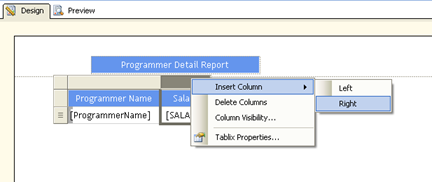
                    I.            Add one more column to the report by right click on the last columnèInsert columnèRight


                  II.            Now we can see another column in the report:


                III.            Now right click on the text box of new columnèchoose Expression:


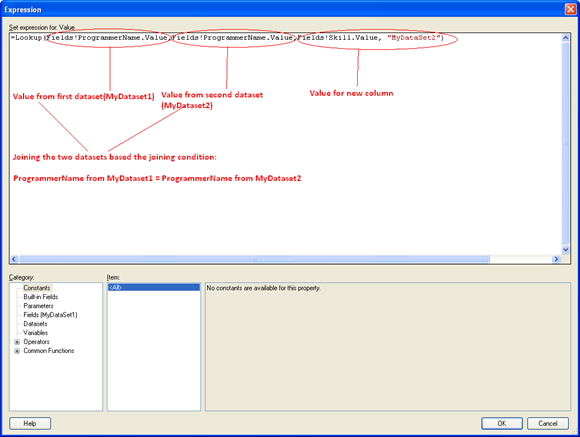
                IV.            Use the LOOKUP function in the expression editor to map both the datasets and click Ok.

Expression:=Lookup(Fields!ProgrammerName.Value,Fields!ProgrammerName.Value,Fields!Skill.Value,"MyDataSet2")


                  V.            We can give the column header text as Skill. Now report will looks like below one:


6.     Conclusion


By using the LOOKUP function introduced in SSRS 2008 R2, we can map multiple datasets to a tablix.

Building SSRS Reports With Multiple Data Sources

SQL Server Reporting Services (SSRS) allow users to create reports using data from a variety of sources, including relational databases, multidimensional databases, web services, XML, and other document types. Using SSRS, we can present data from multiple data sources in a single report.
Methods to achieve this include:
  • Using sub reports
  • Using Openrowset queries.
  • Using Report Builder functions like Look Up, Look Up set, and Multi look up.
In this post we will look at Look Up and Multi Look Up functions.
Consider a typical scenario in which we have two different database instances:
  • MS SQL Server Instance – This instance holds the records for customer sales.
  • Oracle Server Instance   – This instance holds the records for customer information.
The SQL server would have customer table with records like:
Dbo.CUSTOMER_TRANS
customer_id
trans_date
amount
1233
2012-03-01 00:00:00.000
100
2708
2012-04-05 00:00:00.000
150
3421
2012-07-22 00:00:00.000
120
8765
2012-08-27 00:00:00.000
109
The Oracle server would have Customer tables containing customer information like:
CUSTOMER_INFO
cust_id
Name
Email
1233
John
john@xyz.com
2708
David
david@xyz.com
3421
Michael
Michael@xyz.com
8765
Jack
jack@xyz.com
In order to fill data from these two sources into a single report, we would follow these steps:
  1. Create and select data sources (that are already present on your report server):
  1. Create a dataset using Sql server data source (db_Customer_SqlServer):
And similarly create a dataset using Oracle Data source:
  1. Add a table to the report and select the SQL server dataset:
In the report add any columns that you want to display:
You’ll see that names and emails are not populated from the SQL server dataset. To fill out names and emails we have to refer Oracle server dataset.
Right click the name cell and go to values. This will open an expression builder screen.
Write an expression along the lines of this:
=Lookup (Fields!customer_id.Value, Fields!cust_id.Value, Fields!Name.Value, ds_Customer_Oracle)
Basically the syntax is:
=Lookup (source expression, destination expression, result expression, dataset)
We can perform the same actions for the email value, therefore when we run the report we will get the desired outputs.
The Look Up instead returns a single value only; in this case it will return a name corresponding to a customer ID that it pulls from the SQL dataset. Similarly, Lookupset return an array of values for a particular condition.